Easy Travel Translation Tips (Step-by-Step Guide)
Traveling internationally and worried about the language barrier? Your iPhone has a free, built-in translation app that can make communicating in another language so much easier. And the best part? You can set it up so it’s accessible with just one button!
Apple’s Translate app allows you to translate spoken conversations, understand foreign-language text, and even use your camera to translate restaurant menus and signs. You can also download languages ahead of time so you’re prepared when you don’t have internet access.
As a travel advisor, I’m always looking for simple ways to make international travel easier. This is one of those iPhone travel hacks I recommend setting up before your next trip.
Here’s how to get everything ready before you leave home.
Step 1: Make the Translate App Accessible With One Button
There are two convenient ways to access Apple’s Translate feature without searching through your phone. You can assign it to your iPhone’s Action Button or add it to your Lock Screen.
Option 1: Set Up Translate Using Your iPhone’s Action Button
If your iPhone has an Action Button, you can program it to activate Translate with a quick press and hold.
Which iPhones have an Action Button?
The Action Button was introduced with the iPhone 15 Pro and iPhone 15 Pro Max. It’s also included on the iPhone 16 lineup, iPhone 17 lineup, and iPhone Air.
The regular iPhone 15 and iPhone 15 Plus do not have an Action Button.
You’ll find the Action Button on the left side of your phone, above the volume buttons.
How to set it up:
- Open Settings on your iPhone
- Scroll down and select Action Button
- Swipe through the available options until you find Translate
- Leave Translate selected
- Exit Settings
That’s it! Now, whenever you press and hold your Action Button, your iPhone will activate Apple’s translation feature, giving you quick access when you need to communicate in another language.
Keep in mind that assigning Translate to your Action Button will replace whatever function you previously had assigned, such as silencing your phone or turning on your flashlight.
Option 2: Add Translate to Your iPhone’s Lock Screen
Don’t have an Action Button? No problem!
You can also replace one of the shortcut buttons at the bottom of your iPhone’s Lock Screen.
On compatible iPhones running iOS 18 or later, you can customize the flashlight and camera shortcuts.
How to set it up:
- Wake and unlock your iPhone, but stay on the Lock Screen
- Press and hold an empty area of the Lock Screen
- Tap Customize
- Select Lock Screen
- Tap the minus (–) symbol above the flashlight or camera shortcut you want to replace
- Tap the plus (+) symbol in the empty shortcut space
- Find and select the Translate control, if available
- Tap Done to save your changes
Now, whenever you need to translate something, simply press and hold your new Translate shortcut on the Lock Screen.
This is a great option if you don’t have an Action Button or prefer to keep it assigned to another function.
Note: Available Lock Screen controls may vary depending on your iPhone model and iOS version.
Step 2: Choose Your Languages in Apple Translate
Before your trip, take a minute to select the languages you’ll be using.
For example, if you’re traveling to Italy, you might choose English and Italian. Visiting France? Choose English and French.
How to choose your languages:
- Open the Translate app on your iPhone
- Tap the language selectors at the top of the screen
- Choose the language you’ll be speaking, such as English
- Choose the language spoken at your destination, such as Italian, French, or Spanish
- Use the swap arrows if you need to reverse the translation direction
You can change your languages whenever necessary, which is particularly useful if you’re visiting several countries during the same trip.
Step 3: Set Up Conversation Mode for Easy Two-Way Translation
This is one of my favorite features of Apple’s Translate app for international travel!
Instead of typing individual phrases and passing your phone back and forth, Conversation Mode allows two people speaking different languages to communicate more naturally.
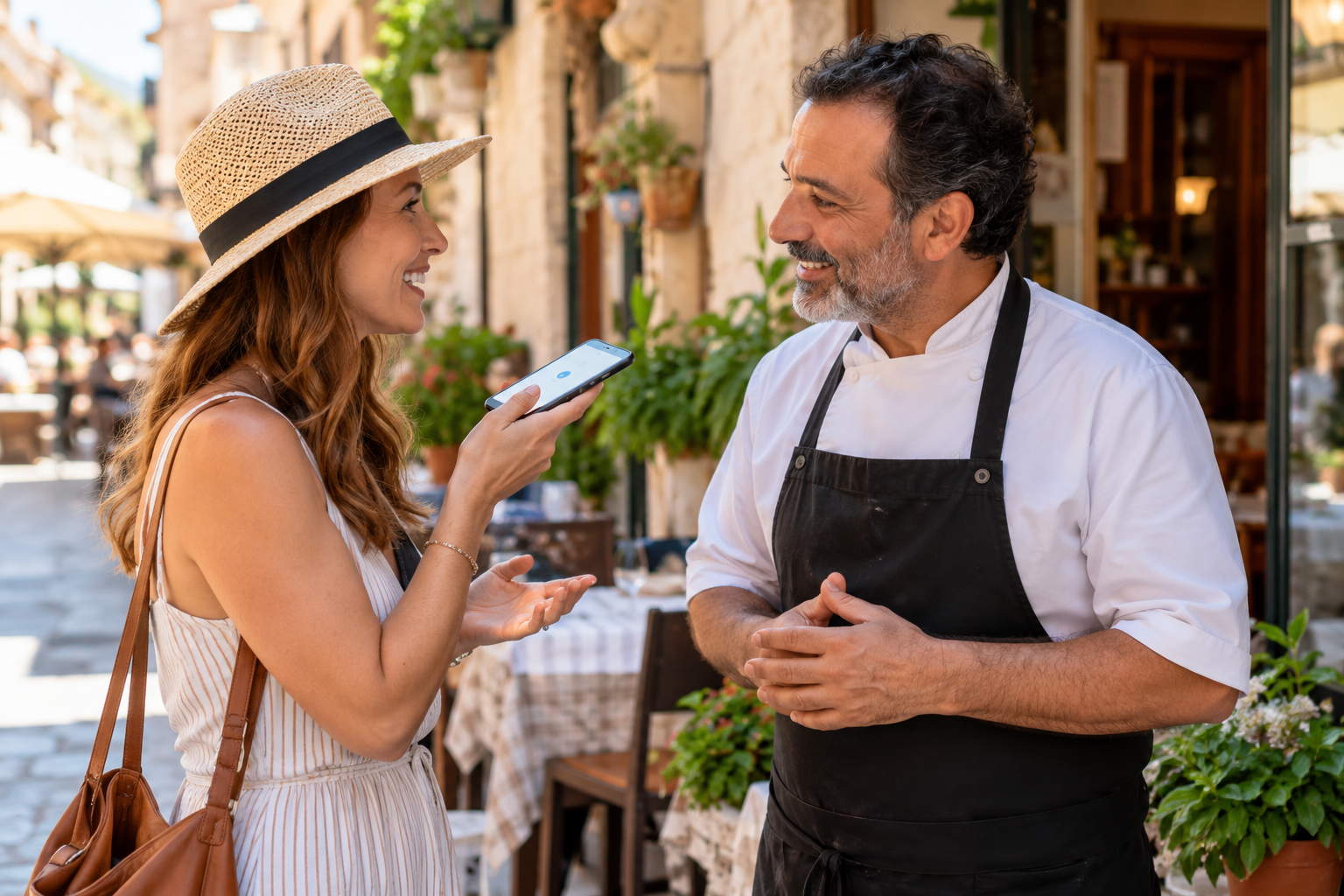
Imagine you’re in a restaurant in Rome and want to ask your server about a particular dish. You speak English, your server responds in Italian, and your iPhone helps translate both sides of the conversation.
How to use Conversation Mode:
- Open the Translate app
- Select the two languages you’ll be using
- Tap Conversation at the bottom of the screen
- Tap the More button (three dots) to access conversation settings
- Enable the following options, where available:
- Auto Translate: Automatically detects when someone starts and stops speaking so you don’t have to keep tapping the microphone
- Detect Language: Automatically identifies which of your two selected languages is being spoken
- Play Translations: Reads translated responses aloud so the other person can hear them
- Tap the microphone or listen button once to begin the conversation
- Start speaking and allow the app to translate the conversation
With these settings enabled, you can have a much more natural back-and-forth conversation without constantly switching languages or tapping buttons.
Bonus Tip: Use Face-to-Face View
Apple Translate also offers a Face-to-Face conversation view, which is especially helpful when speaking directly with another person.
In Conversation Mode, tap the view option and select Face to Face.
Your iPhone will display the conversation in a split-screen format, allowing each person to read the translated text from their own side of the phone.
This is particularly helpful when speaking with hotel staff, restaurant servers, taxi drivers, and shopkeepers.
Note: Apple’s standard Conversation Mode is different from the newer Apple Intelligence-powered Live Translation features, which may have additional device and language requirements.
Step 4: Download Languages Before Traveling So You Can Translate Offline
This is one of the most important steps, and it’s something travelers often forget!
When you’re traveling internationally, you may not always have access to Wi-Fi or cellular data. You could be exploring a small village, traveling through the countryside, or arriving at an airport before your international phone service is working.
Fortunately, Apple’s Translate app supports offline translation for downloadable languages.
How to download languages:
- Open Settings on your iPhone
- Scroll down and select Apps
- Tap Translate
- Select Languages
- Find the languages you want to use during your trip
- Tap the download icon next to each language
- Download both your own language and the language spoken at your destination
Bonus Tip: Turn On On-Device Translation
While you’re in your Translate settings, look for On-Device Translation.
When enabled, this setting allows supported translations to be processed directly on your iPhone using downloaded languages rather than relying on an internet connection.
This can be especially useful when you’re traveling somewhere with limited connectivity.
My travel advisor tip: Download your languages while you’re still at home and connected to Wi-Fi. Then switch your phone to Airplane Mode and test a few phrases before departure.
Not every language or translation feature supports offline use, so it’s worth checking ahead of time.
Step 5: Use Your iPhone Camera to Translate Menus and Signs
Did you know Apple’s Translate app can also translate text using your iPhone’s camera?
This is incredibly helpful when you’re looking at a restaurant menu, reading a street sign, or trying to understand instructions in another language.
How to use camera translation:
- Open the Translate app
- Tap Camera
- Select the languages you want to translate between
- Point your camera at the text you want to understand
- View the translated text displayed on your screen
You can also pause the view to take a closer look at the translation.
This feature is particularly useful for restaurant menus, transportation signs, museum information, and shopping.
You can also use the Translate app to translate text in photos you’ve already taken.
Remember that automated translations aren’t always perfect, especially with handwritten text, regional expressions, or complicated sentences.
What If You Don’t Have an iPhone? Try Google Translate for Android
If you have an Android phone, you can still take advantage of many of the same translation features.
One of the best alternatives is Google Translate, a free app available for both Android and iPhone.
Google Translate offers spoken translations, two-way conversations, camera translation, and downloadable languages for offline use.
How to get started on Android:
- Open the Google Play Store
- Search for Google Translate
- Download and open the official app
- Select your preferred language and the language you want to translate into
- Use the microphone or Live Translate feature for spoken conversations
- Use the camera feature to translate written text
- Download supported languages before traveling for offline access
You can also place the Google Translate app directly on your Home Screen for quick access.
Some Android phones offer additional shortcuts and widgets that can make accessing Google Translate even easier. The exact options vary depending on your phone model.
Google Translate is also a useful alternative for iPhone users who need a language that Apple’s Translate app doesn’t support.
A Few More Translation Tips for International Travel
Before heading abroad, here are a few additional things worth remembering:
- Practice before departure: Try translating a few everyday phrases at home so you know how the app works
- Download your languages: Don’t wait until you’re abroad and potentially without internet access
- Speak clearly and naturally: Shorter sentences can make translations easier to understand
- Keep your phone charged: A portable charger is especially useful when you’re relying on your phone for navigation and translation
- Learn a few local phrases: Even with translation technology, knowing how to say hello, please, and thank you can go a long way
- Double-check important information: Don’t rely exclusively on automated translations for food allergies, medical needs, emergencies, or other critical situations
Ready to plan your next adventure?
Visit Wanderlust Travel by Emily to learn more about my personalized travel planning services.
